Web Learning - HTML
Last updated on April 11, 2026 pm
This article is currently an experimental machine translation and may contain errors. If anything is unclear, please refer to original Chinese version. I am continuously working to improve the translation.
主要参考了
The directory structure largely follows MDN, but the content includes my own omissions / supplements from other references.
HTML Basic Syntax
What is HTML
This was mainly explained in the previous note; here are some supplements / additional remarks.
- The most common HTML file is
index.html, usually used as the website's homepage - HTML tags are case-insensitive, but best practice is still to write all tags in lowercase
Anatomy of an HTML Element

An element is the combination of an opening tag, content, and a closing tag.
Void Elements
Not all elements follow the rule that "an element is the combination of an opening tag, content, and a closing tag"; some elements consist of only a single tag, usually used to insert/embed something into a document. Such elements are called void elements.
For example, the image inserted above:
<img src="https://image.wendaining.top/image-20260409143454274.png" style="zoom:50%;" />In HTML, there is no requirement to add a
/at the end of a void element's tag, but this is also valid syntax.
Attributes
A Brief Introduction
An element's attributes belike:
<p class="editor-note">
     abcdefg
</p>
Here, class="editor-note" is the element's attribute.
Attributes contain extra information about the element, and this information does not appear in the content.
An attribute should include:
- A space between it and the element name
- (Multiple attributes are also separated by spaces)
- An attribute name followed by an equals sign and an attribute value
For example, the <img> element has multiple attributes, including:
src: specifies the locationalt: a text description of the imagewidth,height, in pixels
Boolean Attributes
Boolean attributes are special; they have nothing to do with assignment. As long as they appear in the attribute list, they are true; if they don't appear, they are false. For example:
<!-- 使用 disabled 属性来防止终端用户输入文本到输入框中 -->
<input disabled/>
<!-- 就算是这样写,结果仍然是启用的 -->
<input disabled=false/>
<!-- 下面这个输入框不包含 disabled 属性,所以用户可以向其中输入 -->
<input/>
Quotes Around Attribute Values
In some cases they can be omitted (e.g., no spaces, single attribute)
However, good development practice recommends always including attribute quotes.
To use quotes (single or double) inside quotes of the same type, use character references:
<a href="https://www.example.com" title="一个"有趣"的引用">一个指向示例的链接。</a>Anatomy of an HTML Document
<!doctype html>
<html lang="zh-CN">
  <head>
    <meta charset="utf-8" />
    <title>我的测试页面</title>
  </head>
  <body>
    <p>这是我的页面</p>
  </body>
</html>-
<!doctype html>: the doctype declaration; the beginning of an html file needs to include this -
<html>: wraps all the content on the page, sometimes known as the root element. -
<head>: acts as a container for everything you want to include in the HTML page but that is not shown to page viewers. This includes keywords and page descriptions that appear in search results, CSS used to style content, character set declarations, and so on -
<meta charset="utf-8">:This element represents metadata that cannot be represented by other HTML meta-related elements (such as
base,link,script,stype, ortitle).This sentence is a bit convoluted; to simplify it: information such as the title, styles, and JS code has dedicated head tags to hold it, but
<meta>is used to hold information that has no dedicated tag. -
<title>: sets the page title, which appears in the browser tab that loads the page -
<body>: contains all the content displayed on the page
Whitespace in HTML
<p id="noWhitespace">狗狗很 呆 萌。</p>

<p id="whitespace">狗狗很
    呆
        萌。</p>
These two snippets of code are equivalent. No matter how much whitespace you use inside HTML element content (which can include one or more space characters, as well as line breaks), the HTML parser reduces each whitespace sequence to a single space when rendering the code.
However, when accessed from JS, all whitespace is preserved:
const noWhitespace = document.getElementById("noWhitespace").innerHTML;
console.log(noWhitespace);
// "狗狗很 呆 萌。"

const whitespace = document.getElementById("whitespace").innerHTML;
console.log(whitespace);
// "狗狗很
//     呆
//         萌。"
Character References
| Literal character | Character reference equivalent |
|---|---|
| < | < |
| > | > |
| " | " |
| ' | ' |
| & | & |
A mnemonic for the first two: less than, greater than
Comments
<p>我不在注释里</p>

<!-- <p>但我在注释里</p> -->
HTML Metadata
Adding a Title
Distinguish between <title> and <h1>: the former represents the title of the entire HTML file, while the latter adds a top-level heading to the body.
Metadata: the <meta> Element
Metadata: data that describes data.
Specifying the Character Encoding of the Document
<meta charset="utf-8" />Adding an Author and Description
<meta name="wendaining" content="A Blog Site" />If name="description", it will appear in search engines:
<meta
  name="description"
  content="The MDN Web Docs site
  provides information about Open Web technologies
  including HTML, CSS, and APIs for both Web sites and
  progressive web apps." />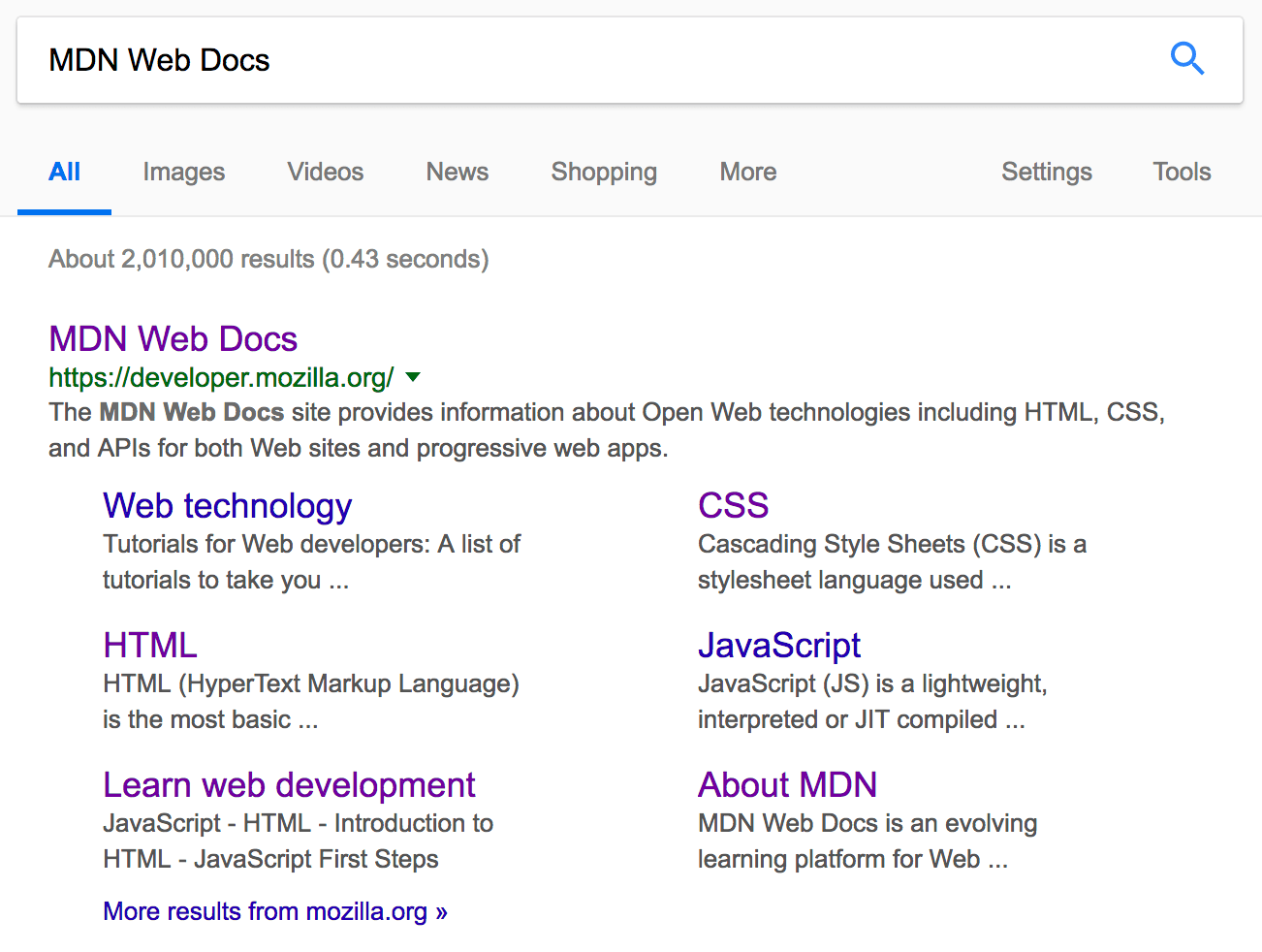
Other Types of Metadata
Much metadata is aimed at proprietary social websites, such as Twitter and Facebook; for these, just consult the corresponding APIs.
<meta property="og:title" content="Mozilla Developer Network" />The og: prefix refers to a set of APIs written by Facebook, but very widely used.
Adding Custom Icons
<link rel="icon" href="logo.png" type="image/png">You can also use the ico format:
<link rel="icon" href="favicon.ico" type="image/x-icon" />Applying CSS and JavaScript in HTML
CSS uses <link>:
<link rel="stylesheet" href="my-css.css" />It is generally placed in the head of the document; rel="stylesheet" indicates that this is the document's stylesheet, while href contains the path to the stylesheet file.
Of course, don't forget the approach of nesting a <style> tag inside <head> and writing the CSS inside it.
About the
relattribute:In everyday development, you really only need to remember these three core ones:
rel value Meaning Browser's reaction stylesheetStylesheet "Got it, I need to read the CSS code in this file and color the webpage." iconIcon "Received, I'll put this image at the far left of the tab." authorAuthor "Oh, this is a link to the author's introduction page."
JavaScript scripts use <script>:
<script src="my-js-file.js" defer></script>It's also best to place it in the head of the page, and preferably add defer to tell the browser to load the JavaScript after the HTML has been parsed.
Setting the Primary Language for the Document
<html lang="zh-CN">
  …
</html>
You can also set the language for individual sections:
<p>Japanese example: <span lang="ja">ご飯が熱い。</span>.</p>HTML Text-Level Semantics
Headings and Paragraphs
Paragraph:
<p>
    I'm a passage.
</p>
Heading:
<h1>
    Header 1
</h1>
It's best to use <h1> only once per page — it is the top-level heading, and all other headings sit below it in the hierarchy.
Among the existing six heading levels, unless you feel it's necessary, you should aim to use no more than three per page.
Emphasis and Importance
Emphasis
The browser's default style is italic, but you should not use this tag purely to obtain an italic style. If you only want the italic style without adding semantic assistance, you should use the span element with some CSS, or the <i> element (see below).
<p>我很<em>庆幸</em>你没有<em>迟到</em>。</p>I'mgladyou weren'tlate.
Strong Importance
The browser's default style is bold, but you should not use this tag purely to obtain a bold style. If you only want the bold style without adding semantic assistance, you should use the span element with some CSS, or the <b> element (see below).
<p>
  这杯液体<strong>毒性很大</strong>——如果饮用了它,你<strong>可能<em>会死</em></strong>。
</p>
This liquid ishighly toxic — if you drink it, youmaydie.
<em> and <strong> can be used nested.
Italics, Bold, Underline, etc.
The elements we've discussed so far all have clear semantics, but <b>, <i>, and <u> are a bit different. They date from a time before CSS existed; presentational elements like these, which only affect appearance and carry no semantics, are called presentational elements and should no longer be used.
Because semantics are very important for accessibility, search engine optimization (SEO), and so on.
Lists
Unordered Lists
<ul>
  <li>豆浆</li>
  <li>油条</li>
  <li>豆汁</li>
  <li>焦圈</li>
</ul>
<ul> stands for "unordered list", <li> stands for "list item".
Ordered Lists
<ol>
  <li>沿这条路走到头</li>
  <li>右转</li>
  <li>直行穿过第一个十字路口</li>
  <li>在第三个十字路口处左转</li>
  <li>继续走 300 米,学校就在你的右手边</li>
</ol>
<ol> stands for "ordered list".
Description Lists
The purpose of description lists is to mark up a set of items and their associated descriptions, such as terms and definitions, or questions and answers.
<dl>
  <dt>内心独白</dt>
  <dd>
    戏剧中,某个角色对自己的内心活动或感受进行念白表演,这些台词只面向观众,而其他角色不会听到。
  </dd>
  <dt>语言独白</dt>
  <dd>
    戏剧中,某个角色把自己的想法直接进行念白表演,观众和其他角色都可以听到。
  </dd>
  <dt>旁白</dt>
  <dd>
    戏剧中,为渲染幽默或戏剧性效果而进行的场景之外的补充注释念白,只面向观众,内容一般都是角色的感受、想法、以及一些背景信息等。
  </dd>
  <dd>
    写作中,指与当前主题相关的一段内容,通常不适于直接置于内容主线中,因此置于附近的其他位置(通常位于主线内容旁边一个文本框内)。
  </dd>
</dl>
- soliloquy
- In drama, this refers to a character performing an inner monologue about their own inner activities or feelings; these lines are directed only at the audience and are not heard by other characters.
- monologue
- In drama, this refers to a character performing their thoughts aloud directly; both the audience and other characters can hear them.
- aside
- In drama, this refers to supplementary remarks delivered outside the scene to create humor or dramatic effect, directed only at the audience; the content is generally the character's feelings, thoughts, and some background information.
- In writing, this refers to a passage related to the current topic that usually doesn't fit directly into the main thread of content, and is therefore placed nearby (usually in a text box beside the main content).
At the start, wrap everything in <dl> (description list); each item is wrapped in <dt> (description term), and each description is wrapped in <dd> (description definition).
A single term can have multiple descriptions.
Quotations
Block Quotations
<p>这是块引用:</p>
<blockquote
cite="https://developer.mozilla.org/zh-CN/docs/Web/HTML/Element/blockquote">
<p>
<strong>HTML <code><blockquote></code> 元素</strong>(或<em
>HTML 块级引用元素</em
>)表示所附文本为扩展引用。
</p>
</blockquote>This is a blockquote:
The HTML
<blockquote>element (or HTML block quotation element) indicates that the enclosed text is an extended quotation.
The general format: <blockquote cite="xxxx"> 内容,一般带一个<p> </blockquote>
Inline Quotations
Replace blockquote above with q; no need for paragraphs inside.
Citations
For the cite attribute of the two above, browsers in fact cannot make full use of it. Unless you write your own solution using JavaScript or CSS, there is no way to make the browser display the content of cite.
This is actually another manifestation of the SEO development philosophy: semantics first, presentation doesn't matter.
This is reflected in many later tags as well.
<p>
根据<a href="/zh-CN/docs/Web/HTML/Element/blockquote"><cite>MDN 块引用页</cite></a>:
</p>
<blockquote
cite="https://developer.mozilla.org/zh-CN/docs/Web/HTML/Element/blockquote">
<p>
<strong>HTML <code><blockquote></code> 元素</strong>(或<em>HTML 块级引用元素</em>)表示所附文本为扩展引用。
</p>
</blockquote>
<p>
引用元素 <code><q></code> 是<q cite="https://developer.mozilla.org/zh-CN/docs/Web/HTML/Element/q">用于不需要段落分隔的短引用。</q>——<a href="/zh-CN/docs/Web/HTML/Element/q"> <cite>MDN q 页面</cite></a>
</p>For example, the <cite> in the first part of this code snippet seems useless, but it needs to be kept as a semantic convention.
Abbreviations
<p>我们使用 <abbr title="超文本标记语言">HTML</abbr>来组织网页文档。</p>We use HTML to structure web documents.
Hovering the mouse over it will display the content of the title attribute.
Marking Up Contact Information
<address>
  <p>wendaining<br/>
    Shanghai, China<br/>
    <ul>
        <li>Email: [email protected]</li>
        <li>GitHub: <a href="https://github.com/wendaining">Link</a></li>
    </ul>
</p>
</address>
wendaining
Shanghai, China
- Email: [email protected]
- GitHub: Link
Superscript and Subscript
- Superscript:
<sup> - Subscript:
<sub>
Both come with closing tags.
Code
code: for marking up generic computer code.pre: for preserving whitespace (usually for code blocks) — if the text uses indentation or extra whitespace, the browser will ignore it and you won't see it on the rendered page. However, if you wrap the text in<pre></pre>tags, the whitespace will be rendered exactly as you see it in your text editor.var: for marking up specific variable names.kbd: for marking up keyboard (or other types of) input entered into a computer.samp: for marking up the output of a computer program.
代码
<pre><code>const para = document.querySelector('p');
para.onclick = function() {
alert('噢,噢,噢,别点我了。');
}</code></pre>
<p>
请不要使用 <code><font></code> 、
<code><center></code> 等表现元素。
</p>
<p>在上述的 JavaScript 示例中,<var>para</var> 表示一个段落元素。</p>
<p>按 <kbd>Ctrl</kbd>/<kbd>Cmd</kbd> + <kbd>A</kbd> 选择全部内容。</p>
<pre>$ <kbd>ping mozilla.org</kbd>
<samp>PING mozilla.org (63.245.215.20): 56 data bytes
64 bytes from 63.245.215.20: icmp_seq=0 ttl=40 time=158.233 ms</samp></pre>Times and Dates
<time datetime="2016-01-20">2016 年 1 月 20 日</time>Structuring Documents
This section discusses how to plan the basic structure of a website and write HTML accordingly.
Basic Sections of a Document
- Header: usually a large strip spanning the top
- Navigation bar: hyperlinks pointing to the main sections of the site
- Main content: no explanation needed; varies from page to page
- Sidebar:
- Footer: usually contains fine print, copyright notices, or contact information
HTML for Structuring Content
- Header:
<header> - Navigation bar:
<nav> - Main content:
<main>, which can also contain various sections, such as<article>,<section>,<div> - Sidebar:
<aside>, often placed inside<main> - Footer:
<footer>
Details of HTML Layout Elements
Non-Semantic Wrappers
Sometimes the existing HTML elements can't adequately express the semantics of the part you want to represent, or you simply want to group a bunch of elements together and then affect them with CSS or JS.
For these situations, there are the <div> and <span> elements. They should be used together with the class attribute to provide some labels, making these elements easy to target.
<span>
<span> is an inline-level non-semantic element, for example:
<p>
  国王喝得酩酊大醉,在凌晨 1 点时才回到自己的房间,踉跄地走过门口。<span
    class="editor-note"
    >[编辑批注:此刻舞台灯光应变暗]</span
  >。
</p>
Here, "editor's note" merely provides extra guidance for the stage director; it has no specific semantics. For sighted users, CSS should set the note content slightly apart from the main content.
<div>
A block-level non-semantic element.
The div element is very convenient but easily overused. Since they carry no semantic value, they can make HTML code messy. Use them with care — only choose them when there is no better semantic solution, and use them as little as possible, otherwise upgrading and maintaining the document will become very difficult.
Line Breaks and Horizontal Rules
<br> is a line break, and <hr> is a horizontal rule.
Creating Hyperlinks
Anatomy of a Link
Wrap the content in <a> and give it an href attribute containing the URL.
<p>
  我创建了一个指向
  <a href="https://www.mozilla.org/zh-CN/">Mozilla 主页</a>的链接。
</p>
Block-Level Links
Any content, including block-level elements, can appear as a link.
Turning a heading into a link:
<a href="https://developer.mozilla.org/zh-CN/">
  <h1>MDN Web 文档</h1>
</a>
<p>自从 2005 年起,就开始记载包括 CSS、HTML、JavaScript 等网络技术。</p>
Turning an image into a link:
<a href="https://developer.mozilla.org/zh-CN/">
  <img src="mdn_logo.svg" alt="MDN Web 文档" />
</a>
Adding Supporting Information with title
This is intended to contain supplementary information about the link, such as what information the page contains or things to be aware of.
<p>
  我创建了一个指向
  <a
    href="https://www.mozilla.org/zh-CN/"
    title="了解 Mozilla 使命以及如何参与贡献的最佳站点。">
    Mozilla 主页</a
  >的超链接。
</p>
Document Fragments
Hyperlinks can link not only to documents, but also to specific parts of a document. That specific part needs to have an id.
Usually, it makes sense to link to a specific heading.
<!-- contact.html -->
<h2 id="Mailing_Address">
    <a href="mailto:[email protected]">
    	向 wdn 发邮件
    </a>
</h2>
<!-- index.html -->
<p>
mail to <a href="contact.html#Mailing_Address">here</a>
</p>Here, mailto, once added, will open the user's email client when clicked.
In fact, mailto can also specify more information, even including the email's subject, body, etc.; I won't go into that here — check the API yourself.
Linking to Non-HTML Resources
<p>
  <a href="https://www.example.com/large-report.pdf">
    下载销售报告(PDF,大小为 10 MB)
  </a>
</p>target="_blank": opens the link in a new browser tab or new window.
target="_self" (default): opens the link in the current tab/window.
For resources that need to be downloaded: use the download attribute to provide a default save filename.
<p>
  <a href="https://www.example.com/large-report.pdf" download="销售报告.pdf">
    下载销售报告(PDF,大小为 10 MB)
  </a>
</p>
Images, Video, Audio, Tables, and Forms in HTML
Images
<figure>
  <img
    src="images/dinosaur.jpg"
    alt="The head and torso of a dinosaur skeleton;
            it has a large head with long sharp teeth"
    width="400"
    height="341" />

  <figcaption>
    A T-Rex on display in the Manchester University Museum.
  </figcaption>
</figure>alt: for accessibility, or the text displayed when the image fails to loadwidthheightare in px<figure>: a container<figcaption>: the caption displayed below the image
Video
<video
  controls
  width="400"
  height="400"
  autoplay
  loop
  muted
  preload="auto"
  poster="poster.png">
  <source src="rabbit320.mp4" type="video/mp4" />
  <source src="rabbit320.webm" type="video/webm" />
  <p>你的浏览器不支持此视频。可点击<a href="rabbit320.mp4">此链接</a>观看</p>
</video>controls: allows the user to control video playbackautoplay: makes the content play immediately; also applies to audioloopmuted: just what they sound like, nothing much to say; the second one turns off sound by defaultposter: this attribute points to the URL of an image, which is displayed before the video playspreload: this attribute is used to buffer larger files"none": does not buffer the file"auto": buffers the media file after the page loads"metadata": buffers only the file's metadata
<source>: just what it sounds like; note thetypeattribute, for decoding purposes- The paragraph inside the
videoelement: this is called fallback content; when the browser doesn't support the<video>element, this content will be displayed
Audio
<audio> and <video> are almost identical except for width, height, and poster
Tables
<tr>wraps each row- Inside the row block, each
<td>wraps a cell
I feel this isn't very meaningful; the syntax in this area is a bit messy, and you probably won't need any very complex designs — just refer to the API / ask an LLM.
Or, in many places you can also export HTML from Excel / Markdown and use that directly.
Buttons
<button>点击这里</button>They need to be paired with JavaScript code to do anything.
Forms
<form action="./submit_page" method="get">
  <h2>订阅我们的新闻简报</h2>
  <p>
    <label for="name">姓名(必填):</label>
    <input type="text" name="name" id="name" required />
  </p>
  <p>
    <label for="email">邮箱(必填):</label>
    <input type="email" name="email" id="email" required />
  </p>
  <p>
    <button>订阅新闻简报!</button>
  </p>
</form>-
The
<form>element: serves as the outer element of the form, organizing all the form controls together; when<bottom>is clicked, all the filled-in data will be submitted. It has these attributes:action: contains a path specifying which page the submitted form data will be sent to for processingmethod: specifies the data transmission method used to send the form data to the server; when the value isget, the data is sent appended to the end of the URL as parameters<form>can contain arbitrary HTML elements. Here, each pair of input field/label and the submit button are each placed in a separate<p>element, so that each group of controls occupies its own line. If we don't do this, all the controls will be on the same line. There are many ways to split up the components, such as using<div>or whatever, as long as it's semantically appropriate.
-
The
<input>element:<input type="text" name="name" id="name" required />type: specifies the type of form control to create. There are many form control types, from various simple text fields to radio buttons, checkboxes, and so on. For example, when the value istext, a basic text box that accepts any text is rendered; when the value iscolor, a color picker is displayed. There are many more, such asemailandpassword— just read the API.name: specifies a name for the data item. When the form is submitted, the data is sent as name/value pairs. Generally speaking, the value of thenameattribute is the data item's "name", and the data the user enters in the text box is the data item's "value".required: specifies that the form control must be filled in before the form is submitted. This should only be used for required fields, and should not be set on optional fields.
-
The
<label>element: used to describe the data that should be entered in the control. The way<label>is associated with<input>is: give the<input>anidattribute, then give the<label>aforattribute whose value is the same as that<input>'sid<label for="name">姓名(必填):</label> <input type="text" name="name" id="name" required /> -
The
<botton>element: when this element is placed inside the<form>element, its default behavior is to submit the form; of course, this default behavior can be changed by modifying thetypeattribute:type="submit": generally doesn't need to be declared explicitly, unless there are multiple buttonstype="reset": just what it sounds like, but not recommended.type="botton": creates a plain button that does nothing by default; can be paired with JS to implement functionality
Radio Buttons

To implement radio buttons like this, use <input type="ratio">:
代码
<fieldset>
  <legend>选择酒店房型:</legend>
  <div>
    <input
      type="radio"
      id="hotelChoice1"
      name="hotel"
      value="economy"
      checked />
    <label for="hotelChoice1">经济型(+$0)</label>

    <input type="radio" id="hotelChoice2" name="hotel" value="superior" />
    <label for="hotelChoice2">高级型(+$50)</label>

    <input
      type="radio"
      id="hotelChoice3"
      name="hotel"
      value="penthouse"
      disabled />
    <label for="hotelChoice3">顶级套房(+$150)</label>
  </div>
</fieldset>
There are a few points to note:
- The
nameattribute value of each group (each<input>) of radio buttons must be the same, so that they are associated as one group - Each radio button must have a
valueattribute, used to specify the value corresponding to that button when submitted - The recommended way to describe the whole group of options is to wrap the options with
<fieldset>, then use the child element<legend>to provide an overall description - Adding the
disabledattribute to the<fieldset>field will disable the entire form - One of the buttons needs the
checkedattribute, which means there will always be one option selected, and a radio button cannot be deselected unless another one is chosen.
Checkboxes
<fieldset>
  <legend>选择要参加的课程:</legend>
  <div>
    <input type="checkbox" id="yoga" name="yoga" />
    <label for="yoga">瑜伽(+$10)</label>

    <input type="checkbox" id="coffee" name="coffee" />
    <label for="coffee">咖啡烘焙(+$20)</label>

    <input type="checkbox" id="balloon" name="balloon" />
    <label for="balloon">气球动物艺术(+$5)</label>
  </div>
</fieldset>
The main differences from radio buttons:
- Multiple or zero options can be selected, so the
names are all different valueis generally not set, because what it specifically is doesn't matter; as long as something is sent back, it's true
Dropdown Menus
<label for="transport">出行方式:</label>
<select name="transport" id="transport">
  <option value="">--请选择一项--</option>
  <option value="plane">乘坐飞机</option>
  <option value="bike">骑自行车</option>
  <option value="walk">徒步</option>
  <option value="bus">乘坐公交</option>
  <option value="train">搭乘火车</option>
  <option value="jetPack">使用喷气背包</option>
</select>
Multi-line Text Input
<label for="comments">其他备注:</label>
<textarea id="comments" name="comments" rows="5" cols="33"></textarea>
The defaults are cols="20" and rows="2".
Epilogue
It feels like I've noted down a lot of syntax that isn't really useful and could just as easily be looked up in the API documentation... I'll just treat it as leaving an impression — the chances of ever writing it by hand are slim to none.